Creating an Account
Welcome to Talvin AI dear recruiters. In this guide I will help you set your organization on Talvin AI product - the right way!
Written By Talvin AI
Last updated Over 1 year ago
Visit our website - https://www.talvin.ai/
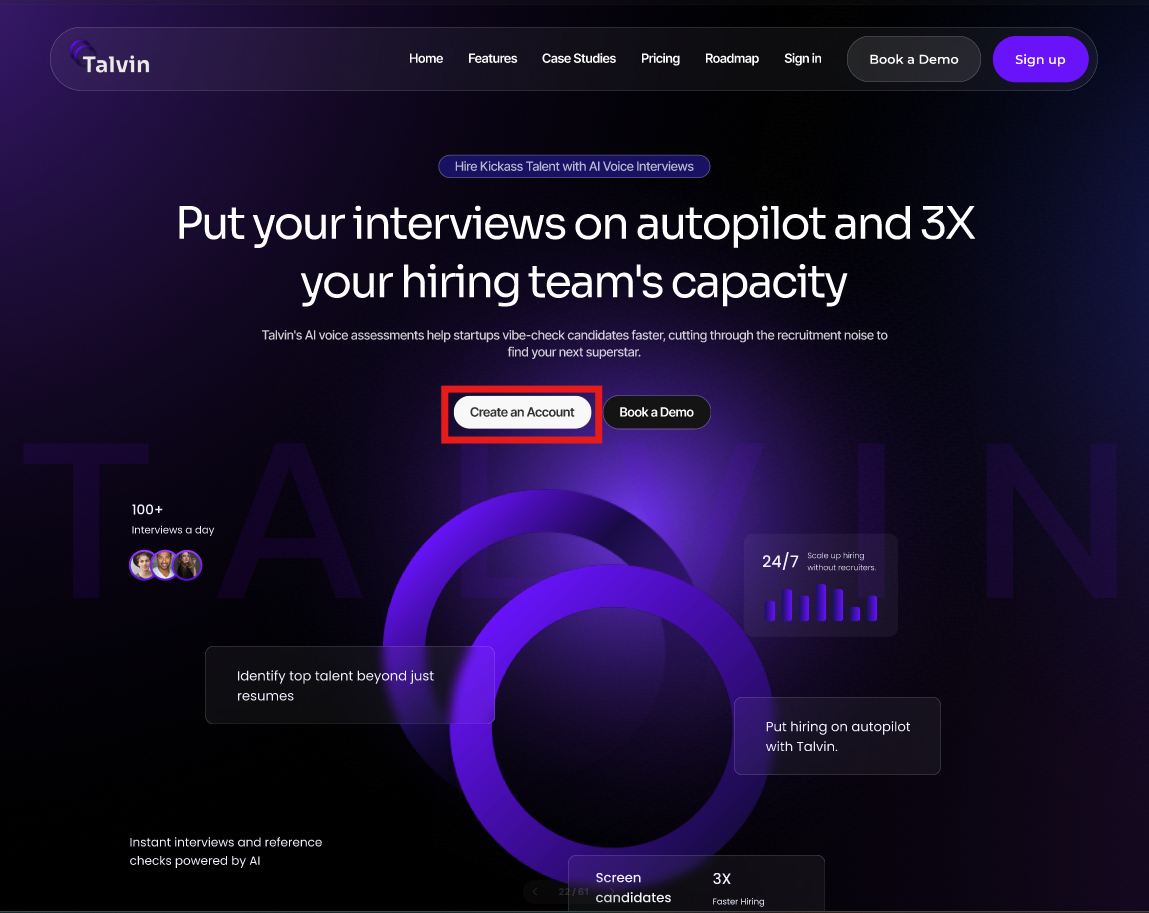
Click on the “Create an account” button as shown on the homepage below
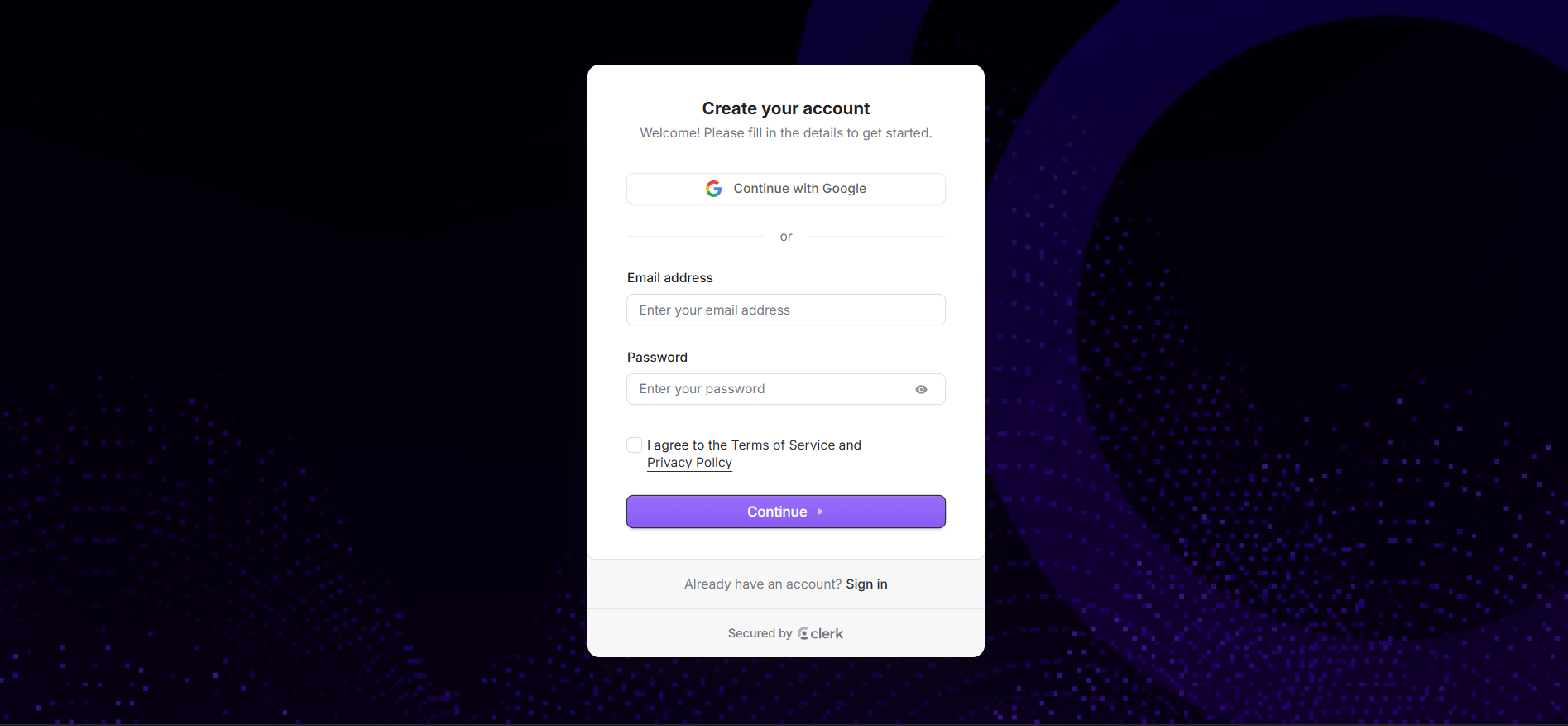
You will be navigated to the account creation page as shown below
You can choose to create an account with Google
OR enter your email address and password as preferred
Please make sure to agree to the terms of service and privacy policy to create an account using your email address
Click “Continue” to create an account
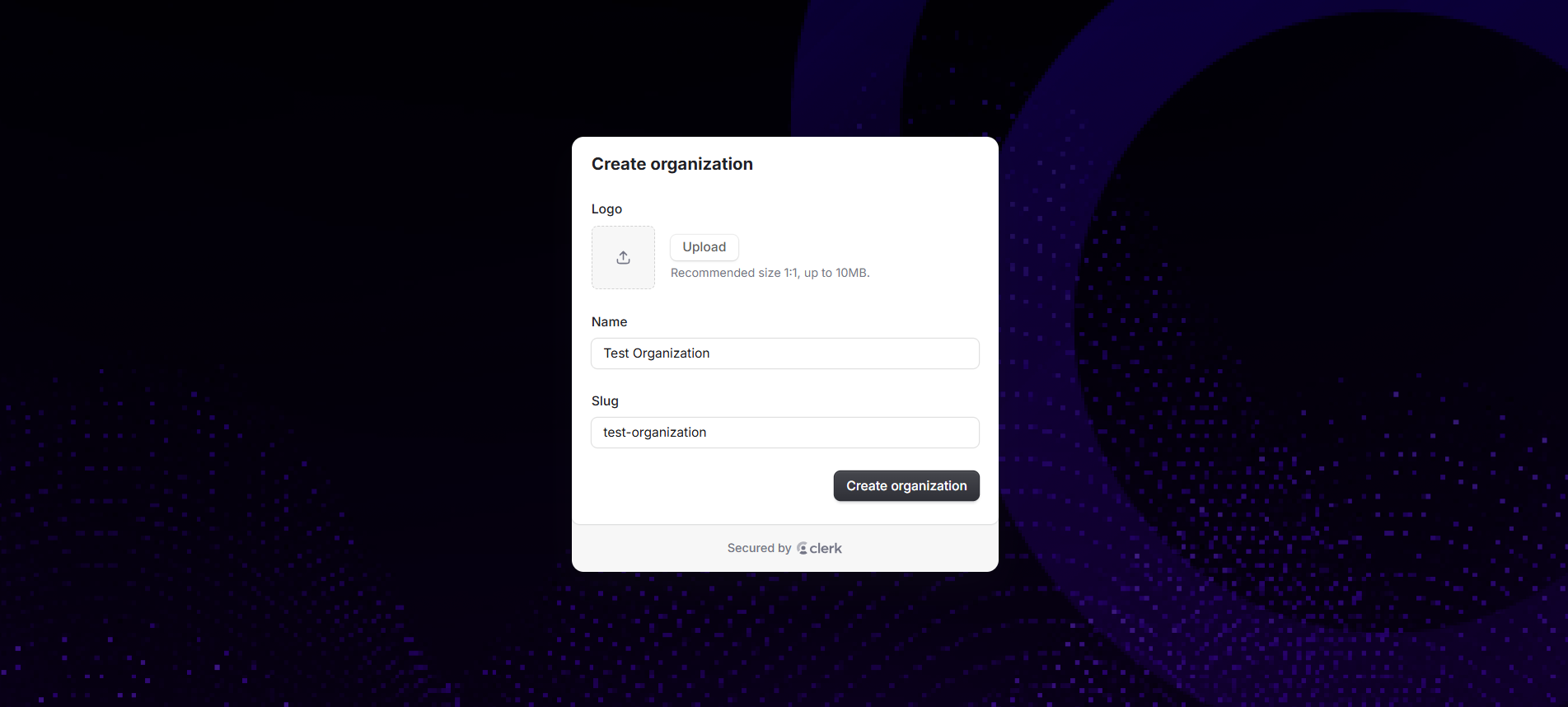
You will be navigated to create your organization by adding the necessary details
You can add the organization logo if available
And then the Organization’s name
The Slug will be created according to the organization name added
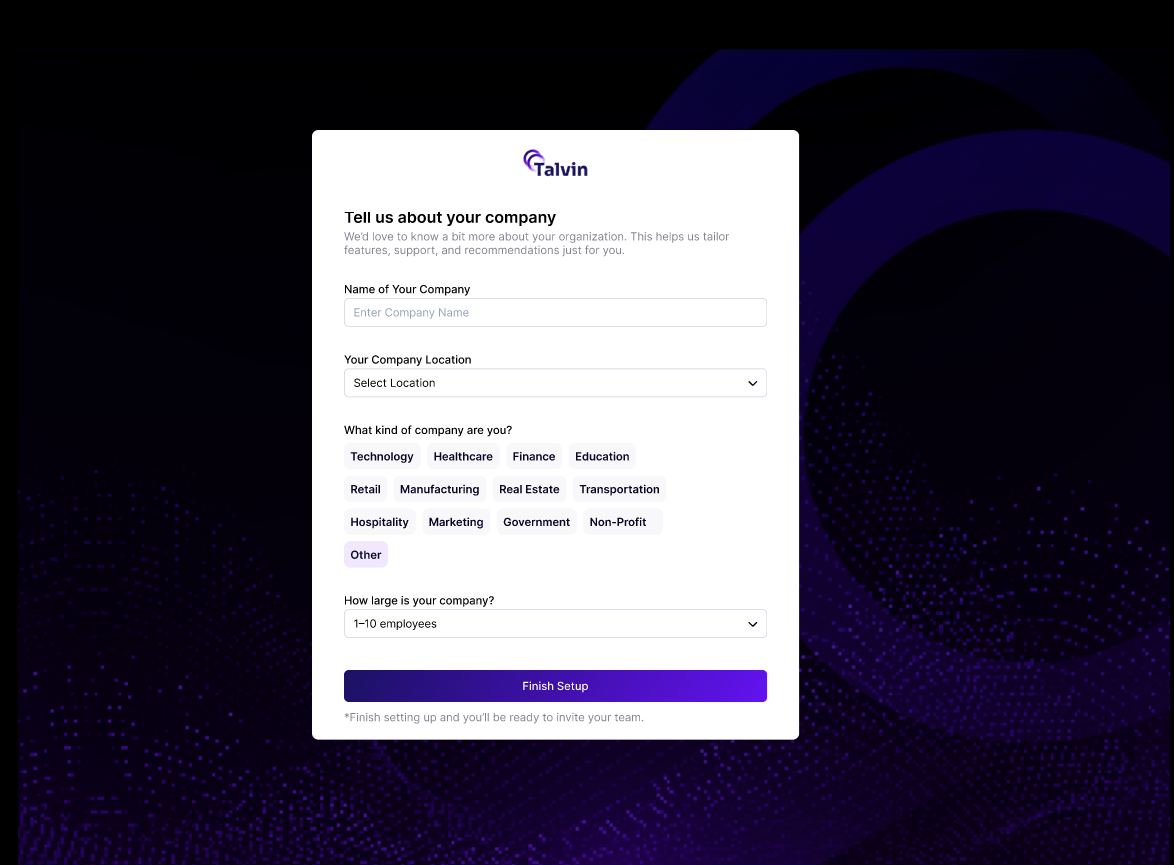
You will then be taken to add some niche information relevant to the company location and some other general information. (P.S. All the information on this page is required to be filled out.)
Once logged into the created account, you will be provided with a demo to introduce you to Talvin. (You can choose to skip this by clicking on the cross button)
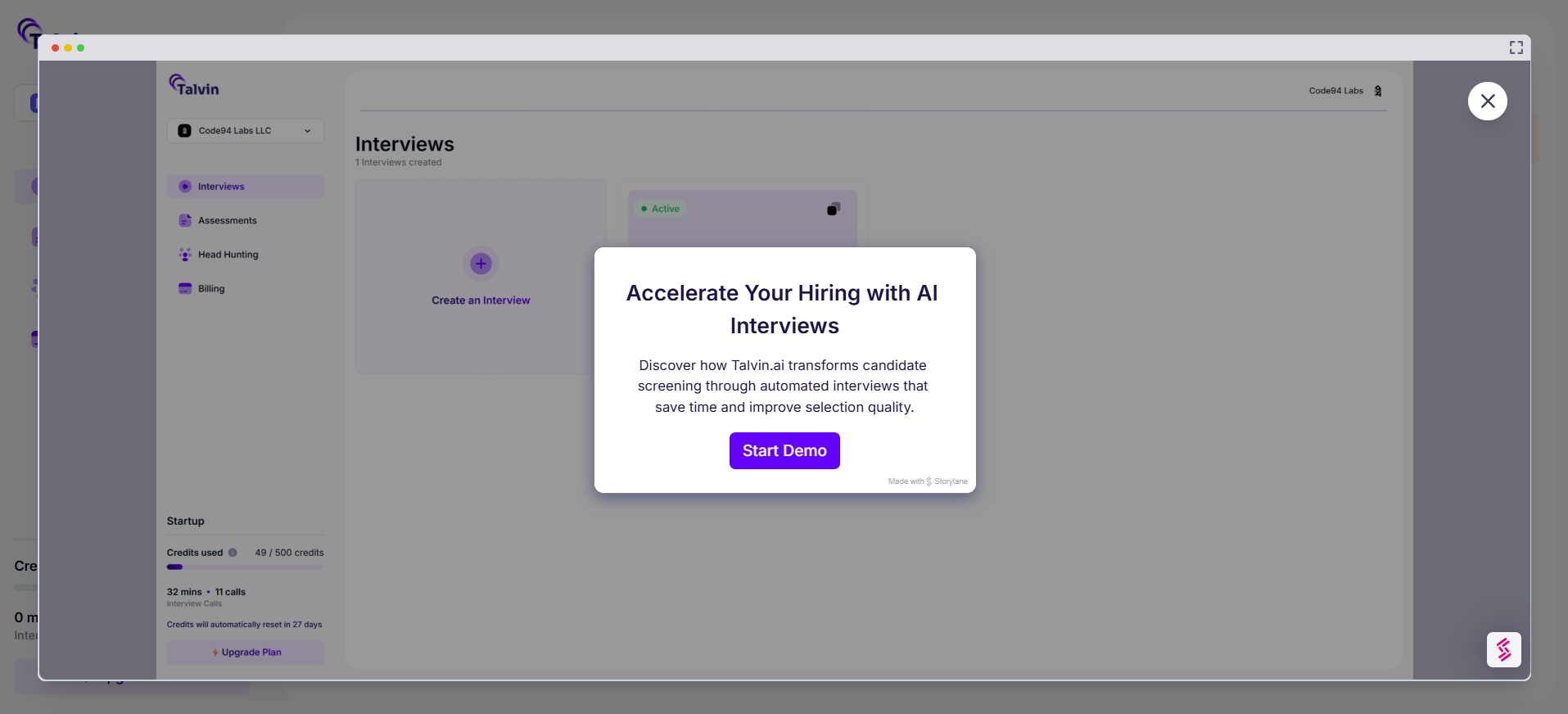
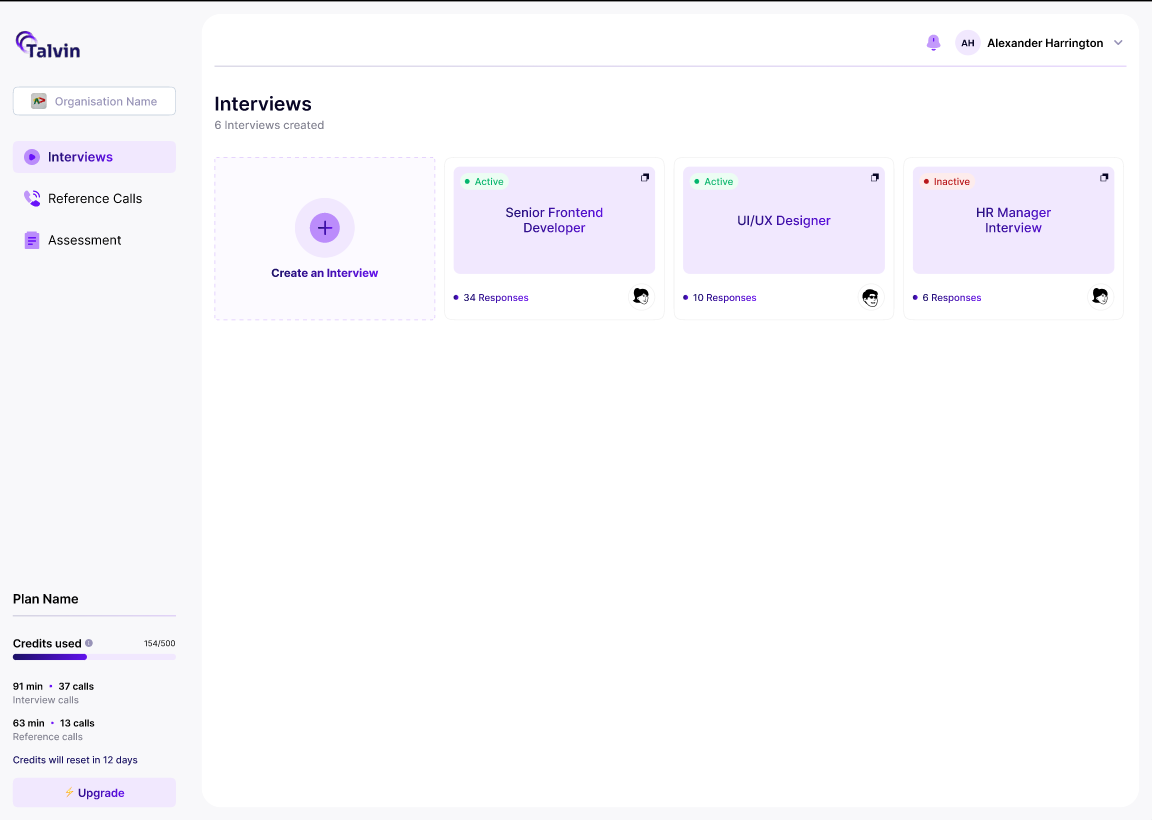
After the demo or when it is skipped, you will be able to view and have access to the Talvin Dashboard
The next article is about the profile settings and its features available to a user.