Managing API Keys for Talvin AI
Learn how to securely generate, manage and revoke API keys to integrate Talvin AI with your applications.
Written By Talvin AI
Last updated Over 1 year ago
Visit Talvin AI:
Go to https://app.talvin.ai and log in to your account.
Accessing API Key Management:
Navigate to the "Settings" section of the application and then select "Integrations." You'll see a section for "API Keys."
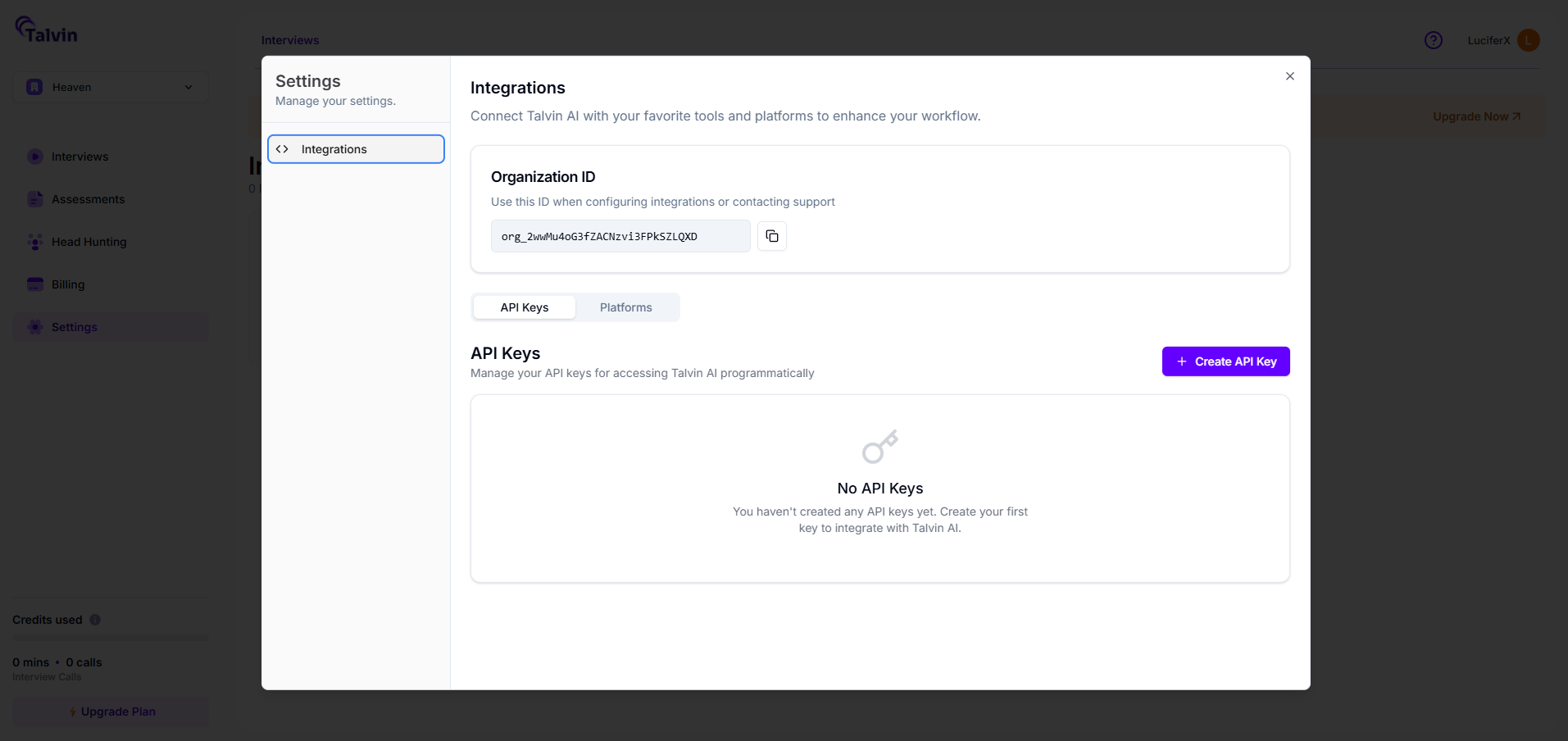
Understanding Your Organization ID:
At the top of the "Integrations" page, you'll find your "Organization ID" (e.g.,
org_2wfr1fypcw3QC6quBxj2XRcuRGq). This ID is important for configuring integrations and for contacting support if you need assistance with your account's integrations. You can copy it to your clipboard by clicking the copy icon next to the ID.
Creating a New API Key:
Click the "Create API Key" button.
A "Create New API Key" pop-up will appear. Enter a descriptive name for your API key (e.g., "Production API Key").
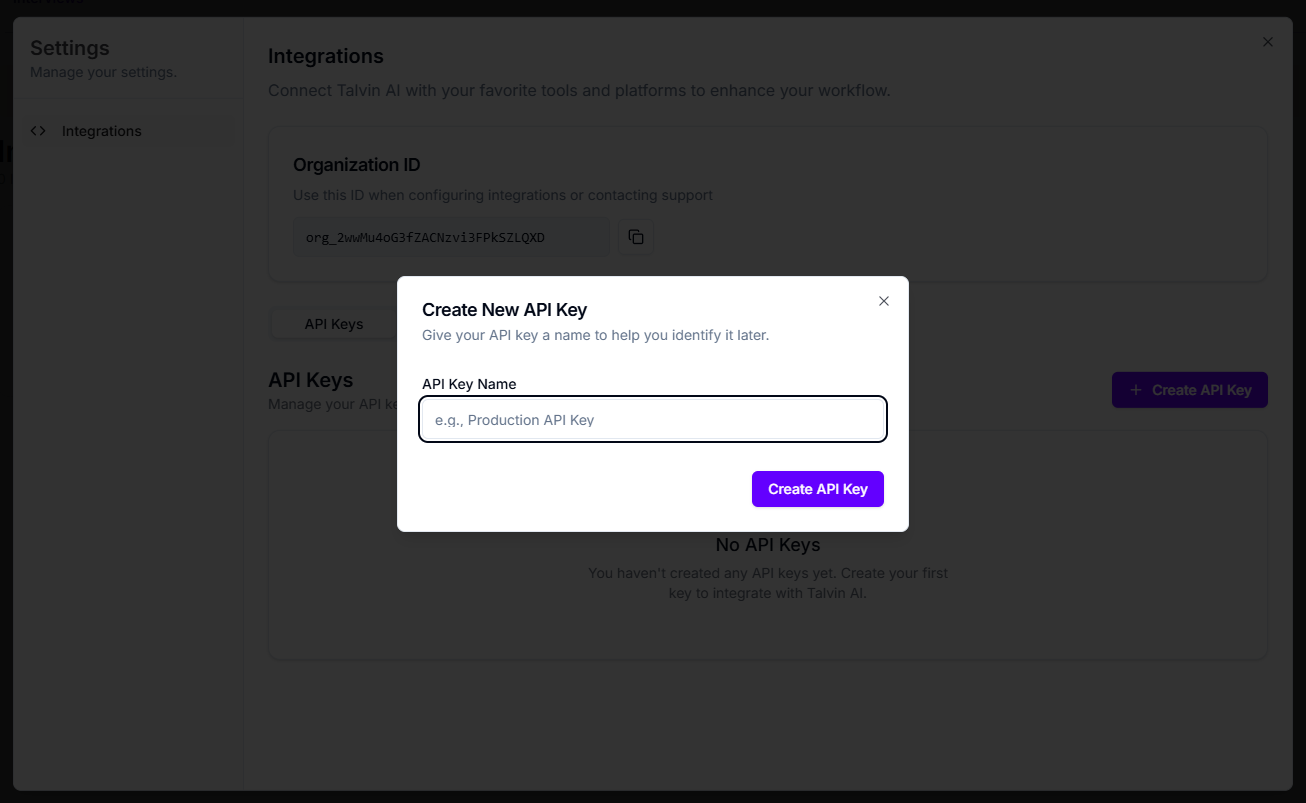
Click "Create API Key" within the pop-up.
A "Your New API Key" pop-up will display the generated API key. Important: Copy or download this key immediately as you won't be able to see it again for security reasons.
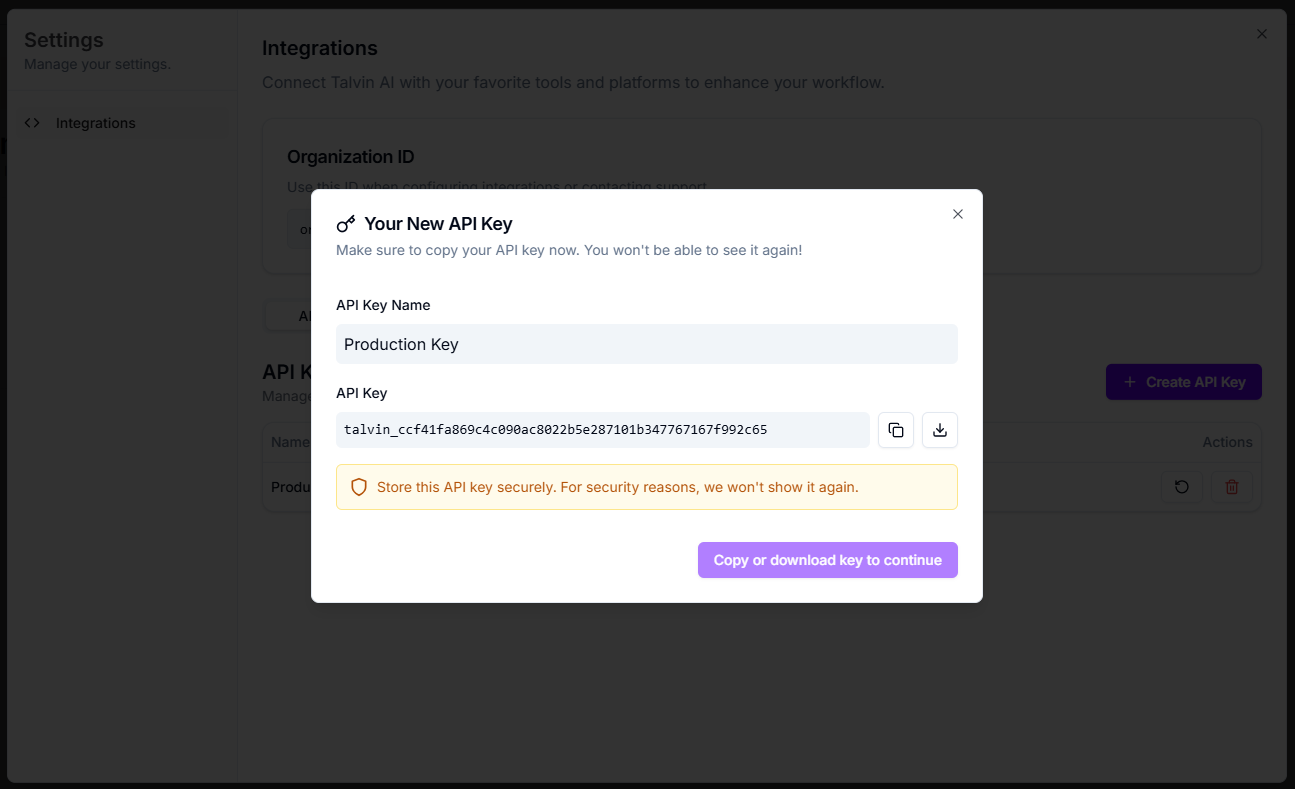
Rotating an API Key:
Find the API key you wish to rotate in the list.
Under the "Actions" column, click the "Rotate" icon (a circular arrow).
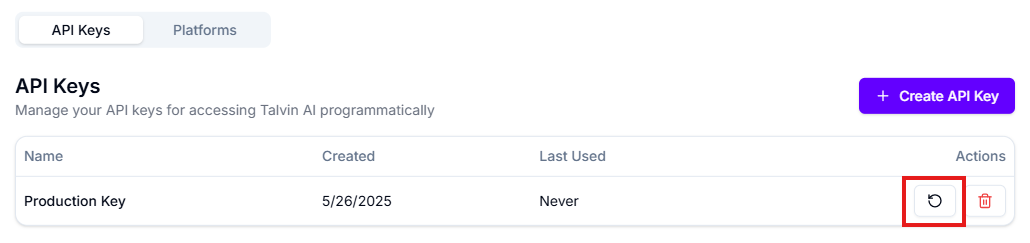
A "Rotate API Key" pop-up will appear, warning you that this will generate a new key and invalidate the old one, requiring updates in any services using it.
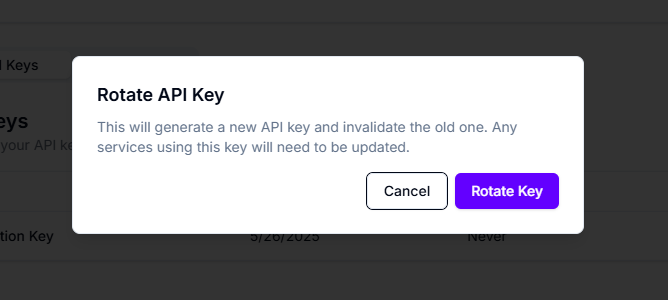
Click "Rotate Key" to confirm.
A "Your New API Key" pop-up will display the generated API key. Important: Copy or download this key immediately as you won't be able to see it again for security reasons.
Revoking an API Key:
Find the API key you wish to revoke in the list.
Under the "Actions" column, click the "Delete" or "Revoke" icon (a trash can).
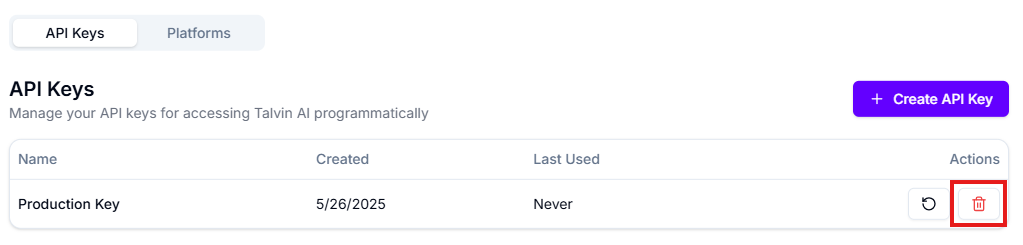
A "Revoke API Key" pop-up will appear, stating that this action cannot be undone and will permanently revoke the API key, breaking any integrations using it.
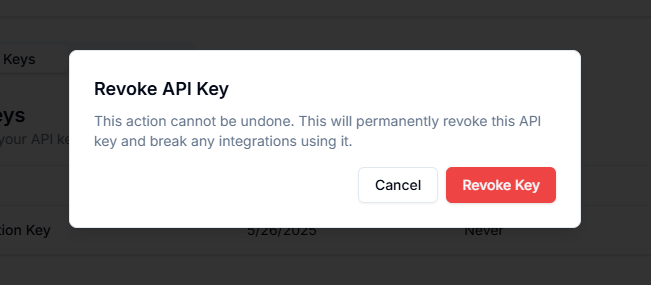
Click "Revoke Key" to confirm. You will see a success notification at the bottom right.